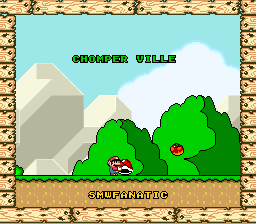
Chomper Ville
0 4 5
Chomper Ville is a classic SNES game that has been faithfully emulated here for free in your browser. If you enjoyed the pixel art style and straightforward gameplay typical of the SNES era, this game offers a charming, accessible experience that fans of retro platformers will appreciate. Its simple mechanics and nostalgic visuals make it suitable for players of all ages looking to enjoy a bite-sized adventure without any installation fuss.
Getting Into Chomper Ville
The core gameplay of Chomper Ville revolves around guiding a small character through a series of levels filled with obstacles, enemies, and collectibles. The game sticks to the traditional platformer format, requiring players to navigate side-scrolling environments while avoiding hazards and jumping over gaps. Each session typically involves completing a level or set of levels, with the goal of reaching the end before running out of lives or time.
Progression is linear, with players moving through increasingly challenging stages. The mechanics are simple, focusing on timing and precise jumps. There are no complicated menus or modes—just a steady flow of levels that invite repeated attempts to improve your score or timing. This setup works well for quick plays or for those wanting to sharpen their skills over multiple tries.
Standout Features
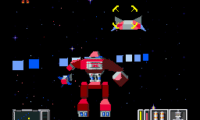
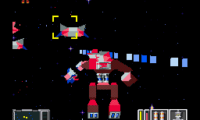
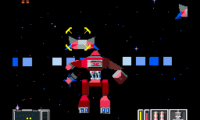
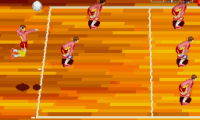
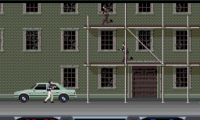
Visually, Chomper Ville stays true to the SNES style, with colorful pixel art and smooth animated sprites that evoke a sense of nostalgia. The levels are designed with simple yet charming backgrounds that keep the focus on gameplay without overwhelming the player. As you progress, you’ll encounter different level themes, which add some variety to the visual experience, though the core gameplay remains consistent.
Replay value comes from the challenge and the desire to beat personal bests or high scores. The straightforward design means you can jump right back in after a failure, encouraging mastery over levels. While it doesn’t feature complex branching paths or multiple modes, the simple, progressively difficult levels motivate players to improve their skills and try to finish faster or with fewer mistakes.
Strategy and Tips
Getting comfortable with the timing is essential. Practice your jumps and learn enemy patterns to avoid losing lives unnecessarily.
- Memorize level layouts to anticipate hazards and plan your moves.
- Take your time lining up jumps, especially across gaps or onto moving platforms.
- Collect items whenever you can, as they might boost your score or give extra lives.
- Don’t rush through levels; patience often leads to safer navigation and quicker finishes.
- Use the pause or retry options if available to analyze tough sections without losing progress.
- If you’re stuck, replay earlier levels to improve your timing and reaction skills before tackling harder stages.
Quick Questions
How do I get started playing Chomper Ville?
Just load the game on this page and start playing right away—no downloads or installations required. Use your keyboard to control the character and move through levels.
What is a common beginner mistake?
Many newcomers rush through levels without paying attention to enemy patterns or timing jumps, often losing lives needlessly. Slowing down and observing helps a lot.
Can I play Chomper Ville on mobile or touch devices?
The game works best on desktop browsers, but it might run on some mobile devices with a compatible browser. Controls can be tricky on touchscreens, so a keyboard makes things easier.
Chomper Ville offers a straightforward, nostalgic platforming experience. It’s perfect for quick sessions where you can challenge yourself to see how many levels you can complete in a row.
Related games: you can also try BS Marvelous Camp Arnold Course – Dai-1-shuu (Japan) and BS Dragon Quest (Japan), or browse all other games in the SNES category.
How to Play Chomper Ville?
Guide your character through levels by jumping over obstacles and avoiding enemies to reach the end before running out of lives or time. Collect items and improve your skills with each attempt.
Game Controls
Arrow keys act as the D-pad; Enter is Start; action buttons are mapped to on-screen keys.
Comments (0)
No comments yet. Be the first to comment!