Touch Dictionary (Korea) (Rev 2)
0 1 0
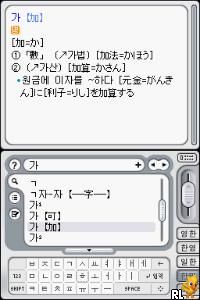
Touch Dictionary (Korea) (Rev 2) is a straightforward language reference tool designed for the Nintendo DS, now playable directly in your browser. This classic from the Nintendo DS era focuses on Korean language learning and translation, making it ideal for students, travelers, or anyone interested in Korean who wants a simple, accessible resource. If you’re looking for a basic way to look up Korean words and phrases on a classic handheld console emulated here for instant play, this game offers a practical solution.
Getting Into Touch Dictionary
The main activity involves searching for Korean words and their meanings. It has a simple interface where you input characters using the touch screen or buttons, then browse through definitions and related info. Unlike complex language learning games, Touch Dictionary works as a digital reference rather than a game with levels or puzzles. Typical sessions involve looking up unfamiliar words or checking translations quickly, which makes it useful during study or casual browsing.
The game doesn’t include multiple modes or mini-games. Instead, it offers a straightforward experience: you select a word, see its translation or explanation, and then move on. This simplicity helps keep things quick and easy. It’s designed for short sessions, making it a handy tool when you need to verify something on the spot. The interface is optimized for the Nintendo DS hardware, so it feels natural if you’re familiar with the device’s touch controls.
Standout Features
One of the notable aspects of Touch Dictionary is its clean, functional visual design. The interface is minimal, with clear text displays that prioritize readability. The focus on usability means you can quickly find the information you need without distraction. Since it’s a dictionary app, there’s no need for complex graphics or animations—its strength is in its straightforward presentation.
While there’s no progression system, the app’s value comes from its usefulness. You can revisit it whenever you come across unfamiliar Korean words, making it a reliable reference tool rather than a game with unlockables or levels. Its simplicity and focus on core features make it a solid resource for learners who want quick, offline access to Korean language data through their browser-based emulation.
Strategy and Tips
Getting the most out of Touch Dictionary depends on how familiar you are with its input method and navigation. Here are some tips:
- Practice how to quickly input characters to speed up searches.
- Use the search function to compare similar words and notice subtle differences.
- If you’re stuck on a word, try browsing related entries or synonyms for clues.
- Keep a list of frequently looked-up words for faster access during study sessions.
- Use the dictionary in short, focused sessions to avoid overload.
- Remember that the touch screen input may take some getting used to if you’re used to typing on a keyboard.
Quick Questions
How do I start searching for a word?
You input characters using the touch screen or buttons and then confirm to see the search results. Once you get used to the input method, it becomes quick and easy.
What’s a common mistake for beginners?
Trying to input characters too fast or inaccurately can lead to no results. Take your time to select characters carefully for accurate lookups.
Can I use this on mobile or touch devices?
Since it runs in your browser, it works well on touch-enabled devices like tablets or smartphones with minimal adjustments.
Touch Dictionary (Korea) (Rev 2) offers a straightforward approach to Korean language reference on the Nintendo DS platform. Its simple design and focus on quick lookups make it a useful tool for learners and casual users alike, now accessible for free in your browser without any fuss.
Related games: you can also try Bokura no Television Game Kentei – Pikotto! Udedameshi (Japan) and Touch Darts (USA), or browse all other games in the Nintendo DS category.
How to Play Touch Dictionary (Korea) (Rev 2)?
Search for Korean words using the keyboard or touch, view their meanings, then move on to the next word. Use it as a quick reference tool during study or casual browsing.
Game Controls
Arrow keys navigate; Enter confirms input or selection; other keys handle character input and commands.
You may be interested in:
-
 Nintendo DS
♥ 1
Casper’s Scare School – Classroom Capers (USA)
Nintendo DS
♥ 1
Casper’s Scare School – Classroom Capers (USA) -
 Nintendo DS
♥ 1
Zunou Nouryoku Koujou Machine – Touch de Zunoo DS (Japan)
Nintendo DS
♥ 1
Zunou Nouryoku Koujou Machine – Touch de Zunoo DS (Japan) -
 Nintendo DS
♥ 1
Zunou ni Asekaku Game Series! Vol. 1 – Cool 104 Joker & Setline (Japan)
Nintendo DS
♥ 1
Zunou ni Asekaku Game Series! Vol. 1 – Cool 104 Joker & Setline (Japan) -
 Nintendo DS
♥ 9
Zuma’s Revenge (USA)
Nintendo DS
♥ 9
Zuma’s Revenge (USA) -
 Nintendo DS
♥ 1
Zubo (USA) (En,Fr,Es)
Nintendo DS
♥ 1
Zubo (USA) (En,Fr,Es) -
 Nintendo DS
♥ 1
Zubo (Europe) (En,Fr,De,Es,It,Nl,Sv)
Nintendo DS
♥ 1
Zubo (Europe) (En,Fr,De,Es,It,Nl,Sv) -
 Nintendo DS
♥ 1
Zorro – Quest for Justice (USA) (En,Fr,De,Es,It)
Nintendo DS
♥ 1
Zorro – Quest for Justice (USA) (En,Fr,De,Es,It) -
 Nintendo DS
♥ 1
Zorro – Quest for Justice (Europe) (En,Fr,De,Es,It)
Nintendo DS
♥ 1
Zorro – Quest for Justice (Europe) (En,Fr,De,Es,It)
Comments (0)
No comments yet. Be the first to comment!