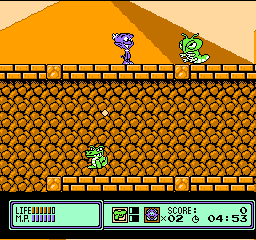
Widget (USA)
0 2 0
Widget (USA) is a classic NES action game that offers quick, arcade-style gameplay perfect for short gaming sessions. This NES classic appeals to players who enjoy straightforward, challenging mechanics combined with a simple but engaging experience. Since it runs directly in your browser, you can jump into the game instantly without any downloads or setup, making it an easy way to enjoy a piece of NES history.
Getting Into Widget
The core gameplay of Widget revolves around fast-paced action where players control a small character navigating through various levels filled with obstacles and enemies. The game emphasizes reflexes and timing, as players need to dodge hazards and clear levels efficiently. Each session typically involves progressing through a series of stages, with the difficulty gradually increasing as you advance.
Modes are straightforward, with the primary goal being to complete levels as quickly as possible while avoiding damage. The game does not feature complex storylines or multiple game modes but instead focuses on providing a tight, replayable experience. Expect to replay levels to beat your best times or to improve your score, making it suitable for players who enjoy scoring challenges or quick bursts of action.
Standout Features
Visually, Widget features the pixel art style typical of early NES games, with simple but distinct sprite designs and colorful backgrounds that create a nostalgic feel. The game’s animation is smooth enough to keep the action clear, even on a browser emulator. Progression is straightforward—each level offers a new layout or increased difficulty, encouraging repeated attempts to master each stage.
Replay value is built into the game’s design, with players motivated to beat their previous best times or high scores. The game’s quick session length makes it ideal for short breaks, and its simple mechanics invite players to try again and refine their skills. Because it’s a classic action game, the challenge comes from improving your reflexes rather than mastering complex controls or storylines.
Strategy and Tips
If you want to improve your gameplay experience, focusing on timing and pattern recognition is key. Watching enemy movements and hazards can help you avoid unnecessary damage. Staying calm and patient is often better than rushing through levels.
- Learn the patterns of enemies and obstacles to anticipate their movements.
- Prioritize quick reactions over slow, cautious play to maximize your score.
- Practice levels repeatedly to memorize layouts and enemy placements.
- Keep an eye on your remaining health and avoid unnecessary risks.
- Try to complete levels as fast as possible to boost your score and unlock new stages.
Quick Questions
How do I start playing Widget?
Simply load the game in your browser—no downloads needed—and press start to jump into the action.
What’s the most common beginner mistake?
Many new players rush too much, failing to observe enemy patterns and getting hit early on. Patience and timing improve your chances.
Can I play Widget on a mobile device or touch screen?
Yes, since it runs in your browser, it works on most smartphones and tablets with touch controls, though a keyboard may be preferable for precision.
Playing Widget is a simple challenge that rewards quick reflexes and memorization. Its straightforward design makes it accessible, yet mastering its timing can be quite satisfying for action fans. Since it’s a classic NES game, it’s best enjoyed in short, focused sessions that test your reaction skills and quick thinking. This small slice of NES action is ready whenever you have a few minutes to spare.
Related games: you can also try Rockman 4 – Aratanaru Yabou!! (Japan) and Adventures of Tomley Kleene by Bob Rost, or browse all other games in the NES category.
How to Play Widget (USA)?
Control the character to dodge enemies and obstacles, completing levels as quickly as possible while avoiding damage. Focus on timing and pattern recognition to improve your score and beat your best times.
Game Controls
Arrow keys act as the D-pad; Enter is Start; on-screen mapped keys handle the action buttons
You may be interested in:
-
![Zombie Hunter (Japan) [En by KingMike v1.01]](https://www.playf2p.com/wp-content/uploads/zombie-hunter-japan-en-by-kingmike-v1-01-200x120.png) NES
♥ 2
Zombie Hunter (Japan) [En by KingMike v1.01]
NES
♥ 2
Zombie Hunter (Japan) [En by KingMike v1.01] -
 NES
♥ 1
Zombie Hunter (Japan)
NES
♥ 1
Zombie Hunter (Japan) -
 NES
♥ 1
Zoids Mokushiroku (Japan)
NES
♥ 1
Zoids Mokushiroku (Japan) -
 NES
♥ 2
Zoids 2 – Zenebas no Gyakushuu (Japan)
NES
♥ 2
Zoids 2 – Zenebas no Gyakushuu (Japan) -
 NES
♥ 1
Zoids – Chuuou Tairiku no Tatakai (Japan)
NES
♥ 1
Zoids – Chuuou Tairiku no Tatakai (Japan) -
 NES
♥ 11
Zippy Race (Japan)
NES
♥ 11
Zippy Race (Japan) -
 NES
♥ 1
Zhen Ben Xi You Ji (Asia) (Unl)
NES
♥ 1
Zhen Ben Xi You Ji (Asia) (Unl) -
 NES
♥ 1
Zenbei!! Pro Basket (Japan)
NES
♥ 1
Zenbei!! Pro Basket (Japan)
Comments (0)
No comments yet. Be the first to comment!